
How to Find and Cancel Online Subscriptions You No Longer Need
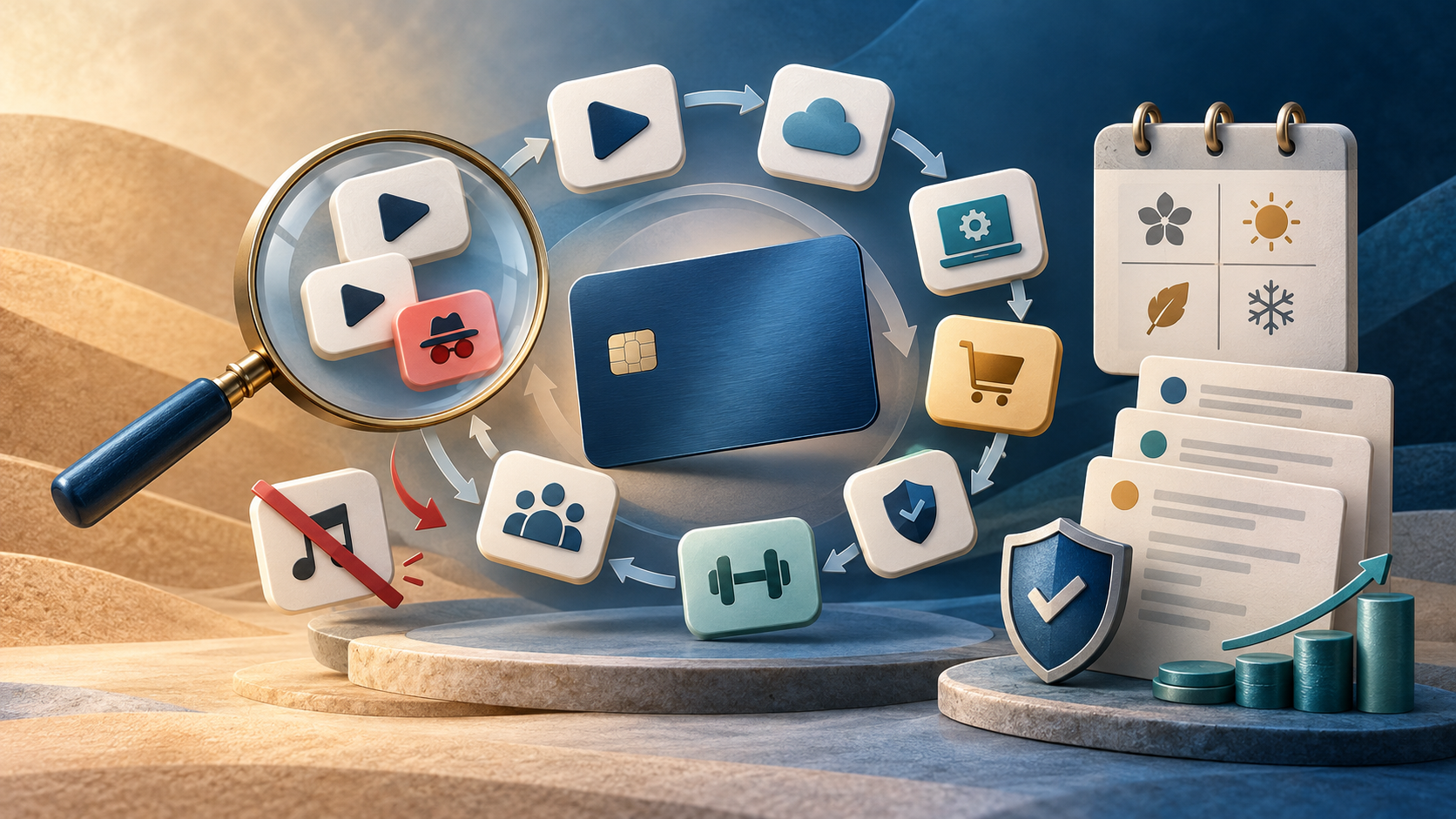
Online subscriptions are easy to accumulate. A free trial becomes a paid plan, a new application replaces an older one, or a service renews annually long after you have forgotten about it.
Because these charges may appear under Apple, Google, PayPal, Amazon, Microsoft, or an unfamiliar billing name, it is not always obvious which online account is responsible.
A quarterly online-subscription review can help you find unused software, duplicate services, forgotten trials, price increases, and charges that no one recognizes. It can also reduce the number of companies storing your payment information and personal data.
The goal is not to eliminate every enjoyable service. It is to make sure each subscription is useful, secure, and intentionally maintained.
What Counts as an Online Subscription?
Your review should include more than video and music streaming. Look for:
- Streaming video and music
- Cloud storage and online backup
- Microsoft 365 and other office software
- Antivirus and security products
- Virtual private network services
- Password managers
- Mobile applications and games
- Artificial-intelligence services
- Online newspapers and publications
- Fitness and educational applications
- Photo-editing and creative software
- Website hosting and domain registrations
- Online meeting and communication services
- Business software licensed per user or computer
- Premium features purchased through an app store
Some of these services may be billed monthly, while others renew quarterly or annually. Annual subscriptions are especially easy to overlook because they appear only once each year.
What You Need for the Review
Set aside approximately 20 minutes and gather:
- Three months of bank statements
- Three months of credit-card statements
- Access to your Apple, Google, Microsoft, Amazon, and PayPal accounts
- Your password manager
- Notes or a simple spreadsheet
- Access to household or business accounts you are authorized to review
If more than one person uses the payment accounts, include them in the review. An unfamiliar charge may belong to a spouse, child, employee, or another authorized user.
Look Beyond Your Bank Statements
Your bank or credit-card statement may show the payment platform rather than the service being purchased. Review subscriptions within the accounts that can authorize recurring payments.
Useful places to check include:
- Apple subscriptions
- Google Play subscriptions
- Microsoft services and subscriptions
- PayPal automatic payments
- Amazon memberships and subscriptions
- Your mobile carrier’s account
- Streaming devices and smart-TV accounts
- Website-hosting and domain-registration accounts
Be sure you are signed in with the account that originally purchased the service. Many people have more than one Apple, Google, Microsoft, or Amazon account.
Build Your Online-Subscription List
Record every repeated technology or online-service charge you find.
For each subscription, record:
- Service name
- Name appearing on the statement
- Monthly or annual cost
- Billing frequency
- Next renewal date
- Payment method
- Email address or account used
- Who still uses it
- Whether it stores important data
- Whether multifactor authentication is enabled
- Whether another service provides the same function
Convert each subscription to an annual cost. A service charging $14.99 per month costs $179.88 per year.
The annual amount does not automatically make the subscription unnecessary. It simply makes its actual cost easier to judge.
Online Subscriptions That Deserve a Closer Look
Watch for:
- Free trials that became paid subscriptions
- Multiple streaming services with little recent use
- Two cloud-storage services holding the same files
- More software licenses than active computers or users
- Security products installed on devices you no longer own
- Premium mobile applications that are no longer used
- Monthly plans that would cost less when paid annually
- Annual plans that no longer provide enough value
- Services included with another membership or software package
- Website domains or hosting plans for abandoned projects
- Former employee accounts that are still licensed
- Services billed through more than one platform
- Subscriptions that increased after a promotional period
- Charges associated with an old email address or forgotten account
For small businesses, unused per-user licenses can quietly become a significant expense. They may also create a security concern if former employees or unused accounts still have access.
Decide What Should Stay
Ask these questions about each subscription:
- Has anyone used it during the past 30 days?
- Would we knowingly purchase it again today at its current price?
- Would a less expensive plan meet the same need?
- Does another service already provide the same feature?
- Is it installed or licensed on a device we no longer use?
- Does the account still belong to someone who should have access?
- What data or functionality would be lost if it were canceled?
Keep subscriptions that provide enough practical or personal value. A service does not have to be essential to be worthwhile, but keeping it should be a deliberate decision.
Check Your Data Before Canceling
Online subscriptions may contain information that becomes inaccessible after cancellation. Before turning off a service, determine whether it stores:
- Documents or photographs
- Computer or phone backups
- Passwords
- Accounting or customer information
- Website files or databases
- Domain registrations
- Software license information
- Purchase history
- Family-shared content
- Business records
- Authentication or recovery information
Download or transfer anything you need before the service ends.
If it is a business subscription, confirm who owns the account and whether another administrator needs access. Do not cancel a domain, email service, backup system, security product, or password manager until a replacement is operating and the necessary data has been verified.
How to Cancel an Online Subscription Safely
Follow these steps when you decide to cancel:
- Open the official application or website. Type the address yourself or use a trusted bookmark. Do not use a cancellation link from an unexpected email or text.
- Sign in to the correct account. Check the email address and account profile before making changes.
- Find the billing controls. Look for Billing, Subscriptions, Membership, Services, Manage Plan, or Automatic Renewal.
- Check who actually bills the subscription. If it was purchased through Apple, Google Play, Microsoft, Amazon, PayPal, or a mobile carrier, you may need to manage it through that platform.
- Review what happens to your data. Determine when access ends and whether files or account information will be deleted.
- Choose cancellation rather than a substitute action. Pausing, downgrading, uninstalling the application, signing out, or disabling notifications may not stop billing.
- Continue until you receive explicit confirmation. Look for language confirming that the subscription is canceled or recurring billing is turned off.
- Save the confirmation. Keep a screenshot or confirmation email showing the account and effective date.
- Record the ending date. Some services remain active until the paid period expires.
- Check the next two statements. Confirm that no additional charges appear.
If cancellation requires a telephone call, record the date, time, number called, representative’s name, and confirmation number.
Uninstalling an App Does Not Cancel Its Subscription
Deleting an application from a phone, tablet, or computer generally removes the software from that device. It does not necessarily cancel the associated payment.
The same is true when you:
- Stop using the application
- Sign out of the account
- Delete a desktop shortcut
- Remove a browser extension
- Replace the computer or phone
- Delete an email message about renewal
Always open the account’s subscription or billing area and verify that automatic renewal has been turned off.
Handle Unfamiliar Online Charges Carefully
An unfamiliar billing name is not automatically evidence of fraud. It may be:
- The legal name of the company
- A parent company
- An app-store purchase
- A payment processor
- A family member’s subscription
- A service purchased with a different email account
Search the exact statement description and review receipts in your email. Check authorized family members and the subscription areas of your payment platforms.
If the charge remains unexplained:
- Contact the service through independently verified information.
- Temporarily lock the payment card if your issuer provides that option.
- Notify the bank or card issuer promptly.
- Use the issuer’s official dispute process.
- Review nearby transactions for additional unauthorized activity.
- Change the service password if the account may have been taken over.
- Enable multifactor authentication if it was not already active.
Simply replacing the card may not cancel the underlying subscription. Cancel with the service provider when the account is legitimate, and work with the card issuer when fraud is involved.
Avoid Fake Renewal and Refund Scams
Scammers frequently send fake invoices or renewal notices claiming that an expensive software, security, or technical-support subscription is about to renew.
The message may instruct you to call immediately for a refund or cancellation. The supposed representative then asks for remote access to your computer or wants to view your banking screen.
Be suspicious if someone:
- Demands payment to cancel
- Requests gift cards or cryptocurrency
- Wants remote access to your computer
- Asks for your complete password
- Requests a one-time security code
- Claims to have issued an excessive refund
- Asks you to return part of a refund
- Tells you not to contact your bank
- Pressures you to act immediately
Do not call the number in the message. Check your actual bank or credit-card account to see whether the charge exists. Then contact the company through its official website.
For more guidance, read Fake Tech Support Scams: How to Spot and Stop Them.
Common Online-Subscription Mistakes
Avoid these common mistakes:
- Reviewing only one credit card
- Forgetting Apple, Google, PayPal, Amazon, or Microsoft billing
- Overlooking annual renewals
- Uninstalling an app without canceling its subscription
- Canceling cloud storage before downloading important files
- Ending email, hosting, or domain services without a replacement
- Accepting a temporary pause when cancellation was intended
- Failing to save confirmation
- Removing a payment method without ending the underlying service
- Ignoring small unauthorized charges
- Giving a caller a password or verification code
Today’s Practical Step
Review your most recent credit-card or bank statement and identify every online subscription. Choose one and calculate its annual cost.
Then ask:
Would I knowingly purchase this service again today at its current price?
If the answer is no, check whether it stores anything important, cancel it through the proper account, save the confirmation, and verify the next two statements.
If you need help identifying software subscriptions, reviewing mobile applications, or determining whether an online renewal message is legitimate, Lofgren IT Consulting provides friendly technology assistance for homeowners and small businesses throughout Prescott, Prescott Valley, Chino Valley, Paulden, and surrounding Arizona communities.
Learn more about a Phone Setup and Privacy Review, request a Security Review, or contact Lofgren IT Consulting.
More news articles below: